
Overview
To help users manage their inboxes more efficiently, you can now set the Conversations dashboard to display only unread messages by default. This helps teams focus strictly on conversations that require immediate attention without being distracted by previously read threads.
By default, this setting is turned OFF for all users, meaning both read and unread messages will display normally.
How to Enable or Disable the Setting
You can toggle the "Default Conversations to Unread only" setting ON or OFF in three different areas.
Note: This setting is fully synchronized. Updating it in one of these areas will automatically apply the change to the other two.
-
My Profile: Navigate to your profile page and locate the toggle under Other Settings.
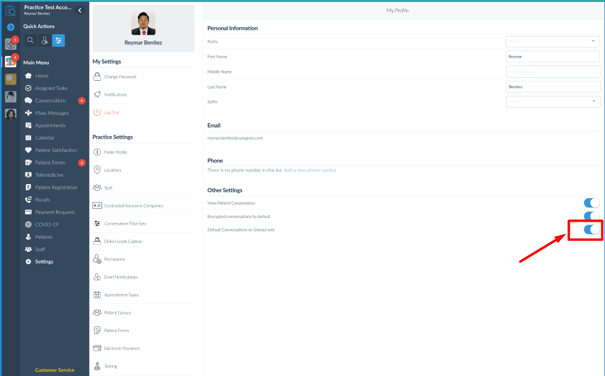
-
New Staff Modal: When an Administrator creates a new staff profile, they can set this preference immediately.
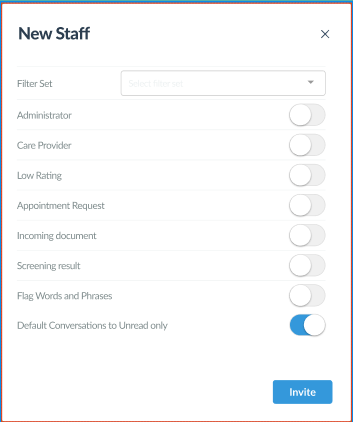
-
Staff Info Modal: Administrators can update this for existing staff by navigating to Settings > Staff, clicking the 3 dots (...) next to a user, and opening Staff Info.
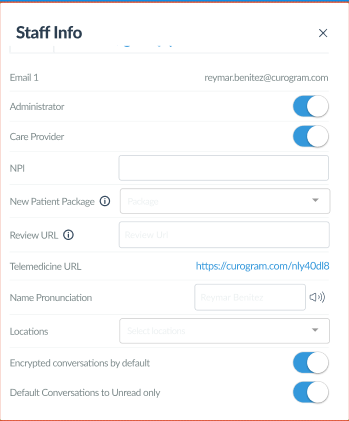
How the Dashboard Behaves When Turned "ON"
When a user has this setting enabled, the Conversations dashboard changes its default behavior to keep the inbox focused on pending items:
-
Unread View Only: The main dashboard will automatically filter out read messages.
-
Red Status Banner: A red banner will appear at the top of the dashboard with the label: "Showing unread conversations only".
-
Full Chat History: When you click into an unread conversation, you will still see the entire chat history (including past read entries) for context.
-
Temporarily Viewing All Messages: If you need to find a previously read conversation, simply click the "X" on the red banner. This will drop the filter and show all conversations.
-
Sticky Default View: Because this is your default setting, the system will always prioritize the unread view. If you click the 'X' to view all messages, the dashboard will automatically snap back to "Unread Only" the next time you refresh the page or click back into the Conversations tab.