
Skip to content
  • There are no suggestions because the search field is empty.

Introducing Curogram Payments

What is Curogram Payments?

Curogram Payments is a built-in payment gateway, powered by XplorPay, that allows your practice to securely collect patient payments directly through Curogram. It works similarly to other gateways (such as EasyPay or Stripe), but is seamlessly integrated into your existing Curogram workflow.

With Curogram Payments, your practice can:

  • Send payment requests

  • Add charges

  • Send payment links to patients

  • Allow patients to pay by entering their credit card details

  • Void and refund payments

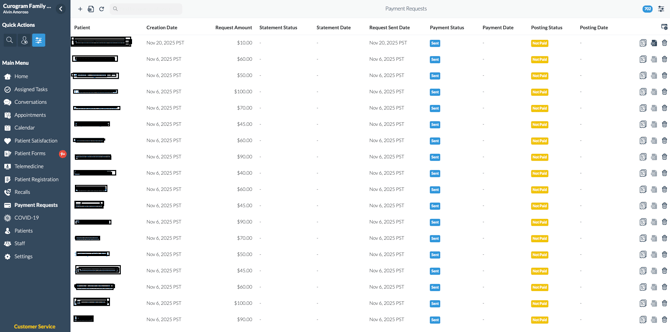
  • View all payment activity in your Payment Requests dashboard

Curogram Payments, powered by XplorPay, is a validated payment processor that securely handles card transactions and complies with PCI DSS security standards.

What Makes Curogram Payments Different?

Curogram Payments introduces several features designed to make collecting payments easier and faster:

  •  Faster setup and activation
    Practices can complete onboarding quickly and begin collecting payments without waiting for external configuration or API credentials.
  • Save credit cards on file (with patient consent)
    Patients can securely save a card on file during a payment. Saved cards make future transactions faster and reduce the need to send payment links for every charge.
  • Pre-authorization charges
    If a patient has a card saved on file, the practice can complete approved charges without requiring the patient to re-enter payment details.
  • Payment plans (coming soon)
    With saved cards and pre-authorization support, Curogram Payments will soon support payment plans to help patients settle balances through installments.
  • Reconciliation visibility
    Curogram Payments provides improved accuracy when tracking which payments have been completed and deposited to the practice.

Core Components of Curogram Payments

Curogram Payments includes the following key components:

1. Onboarding

A guided onboarding flow inside Curogram that allows your practice to register as a merchant and begin processing payments.

2. Curogram Payments Public Widget

This is the payment screen patients see when they open your payment link.
It supports:

  • Using a saved credit card

  • Entering a new card

  • Giving consent to save a card for future use

3. Credit Card on File

A section inside the patient profile that shows:

  • Saved credit cards

  • The default card

  • Options for charging or removing cards (with patient consent)


Curogram Payments Onboarding

The onboarding process is simple and takes place entirely inside Curogram.

Step 1: Start the Onboarding Form

Your practice initiates the Curogram Payments application from the Electronic Payments settings page.


Step 2: Complete the Application

  • You will be guided through a secure online merchant application powered by Xplor Pay.
    The application includes:
  • Practice information

  • Banking information (for deposits)

  • Owner or authorized signer details

At the end of the application, you will review and sign electronically.

Step 3: Begin Using Curogram Payments

  • Once approved, Curogram Payments becomes available as your payment gateway.
    You can then begin sending payment requests and accepting payments immediately.

ONBOARDING VIDEO:

00:10: Introducing kilogram payments powered by Explorer pay, a

00:14: built-in HIPAA compliant, payment solution, that helps your, practice collect payments

00:18: faster directly inside kilogram.

00:20: No third-party apps, no extra setup.

00:23: Just secure seamless transactions from the same place you already communicate

00:27: with patients.

00:30: Pyramids helps, you increase Collections and reduce outstanding balances

00:34: by making it easy for patients to pay right from their phone.

00:40: To initiate payment collection through kilogram payments.

00:43: You must complete the form and undergo the onboarding process.

00:46: This process is one time only, If you don't see this

00:50: option, please contact our customer support team.

00:54: Now, here's the step by step guide.

00:57: On your kilogram app dashboard navigate to the settings tab?

01:02: Next, look for electronic payments under practice settings.

01:07: Next hit on apply now.

01:09: Please enter your business name and email address on the merchant ID. It is pre-filled to 8011, which refers to doctors or Physicians. However, you may ask our customer support for an appropriate Merchant code.

01:24: Once you hit submit a new pop-up will appear where it prompts a

01:28: successful submission to continue. Click on finish application.

01:32: You'll be redirected to the onboarding link from their enter,

01:36: your 4-Digit desired pin. Please remember this pin as

01:41: it will be your PIN for retrieving your application.

01:44: Next, fill out the business. Owner type name and legal business name.

01:49: Complete the remaining information, including your address contact number email,

01:54: federal tax ID and so on.

01:57: Under Legal Information you'll see for checkboxes simply select

02:01: business currently accepts or has accepted payment cards.

02:04: You'll need to choose your current payment provider on this furthermore

02:08: simply check business is currently open.

02:12: Under the card sales info you need to declare 0% under card

02:17: present data fields. Next declare 100% under card, not

02:21: present on the other data fields such as the average single sale amount.

02:25: The high single sale amount and the total annual sales amount, you have the

02:29: freedom to declare any value. You'd like,

02:32: Next, under additional business. Details, choose brick and mortar as the

02:36: main Merchant location under the web address field.

02:39: Please include your practices website URL on the remaining

02:43: data fields provided description of the products and services you

02:47: offer as well as your return and refund policy.

02:50: If there's any Do note that there's a limit of characters under products

02:54: and services of 250 characters and 512 characters

02:59: in return and refund policy respectively.

03:03: Right after the return, and refund policy select and Market checkbox.

03:07: If you believe any statement is applicable to your practice.

03:10: However, we recommend leaving these unchecked moreover,

03:14: declare the month and year of your practice in the corporation or establishment.

03:18: Once everything is set hit, save and continue.

03:23: Under the banking details section, you must provide all the necessary information.

03:27: This is the primary account where all the proceeds of your transactions

03:32: will be deposited. Once done, click save account to continue.

03:37: After saving the account, you will be redirected here as part of the confirmation

03:41: of your banking details. If you think all information is correct, simply

03:46: click continue.

03:48: Next, you'll find the option under the equipment tab, simply select and

03:52: check the kilogram, JavaScript SDK option.

03:55: Once done hit next.

03:57: An equipment configuration choose one as quantity, next

04:01: make sure Auto batches marked as yes.

04:04: This ensures all your daily transactions, automatically close, and get processed

04:09: for deposit. Then set your auto batch time depending on your location

04:13: for Pacific. Set it to 745 p.m.

04:17: 4 Mountain, set it to 8:45 p.m.

04:20: 4 Central set it to 9:45 p.m.

04:24: and finally, four Eastern set it to 10:45 p.m.

04:29: Subsequently set your time zone to receive the batch report simply

04:33: select. Yes. And enter the email address.

04:36: You want to send the report to

04:39: Next select or Mark know for all the remaining options such

04:43: as accepting tips signing up for the Empower program and so on.

04:51: Once everything is set, select save equipment to proceed.

04:56: Next, you'll be directed to the confirmation of your virtual equipment.

04:59: Simply click continue to proceed.

05:03: The next one will be the contact category please provide the contact

05:07: person of your practice. Also, Mark the checkbox for both signer

05:11: and owner. Otherwise it will air out if you choose only one.

05:16: Please note that the contact person you've declared here is responsible, for signing,

05:20: confidential onboarding documents that will be sent to the email address.

05:24: You've provided

05:26: Another important reminder before proceeding.

05:29: Please ensure that the signer you've declared here has unfrozen their credit after

05:33: submitting the application to avoid any interruptions.

05:36: You can always return to this application using your PIN.

05:41: Please provide all the information requested in these fields.

05:45: And hit save contact.

05:47: Next is a prompt confirmation of your added contact person.

05:51: Mark, the checkbox below. It confirming that all owners with 25%

05:55: or more have been added if you'd like to add more contact.

05:59: Persons just hit add contact otherwise hit continue

06:03: for the next steps.

06:05: Then review all the information. Once done, click continue

06:09: to sign.

06:11: Next, you'll be redirected to this signing packet confirmation.

06:15: Mark, the checkbox in the consent button and hit, let's begin.

06:20: You'll receive an email containing the onboarding documents to proceed.

06:24: You need to open an electronically sign it from the email.

06:28: The actual approval, typically takes 24 hours depending on risk

06:32: review, or manual verification.

06:35: Once approved, you can now View and select the kilogram payments under the

06:39: payment, Gateway section in your practice settings.

06:43: Congratulations. You've successfully completed the onboarding process

06:47: and can now begin using curogram payments.

06:50: If you have clarifications or questions, contact our customer

06:54: support team at support@gmail.com, we are always happy to

06:58: help.


Curogram Payments Public Widget (What Patients See)

When a payment request is sent, the patient receives a secure link. After verifying their identity, the patient sees a page displaying:

  • The list of charges

  • A Pay button

  • The Curogram Payments widget

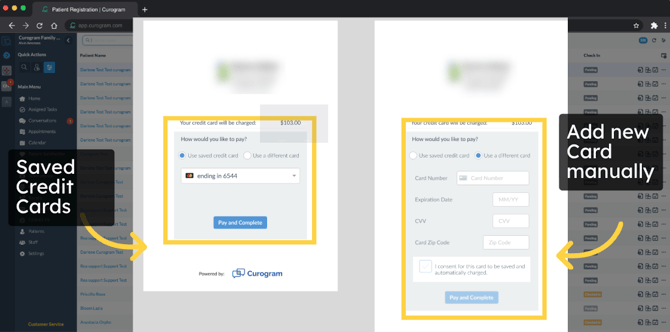
The widget includes two options:

1. Use saved credit card

If the patient has previously saved a card:

  • A dropdown displays all saved cards

  • The patient can choose a card and complete the payment instantly

2. Use a different card

The patient can enter a new credit card by filling in:

  • Card number

  • Expiration date

  • CVV

  • Zip code

These fields are required for completing a payment.
Optional Consent to Save Card

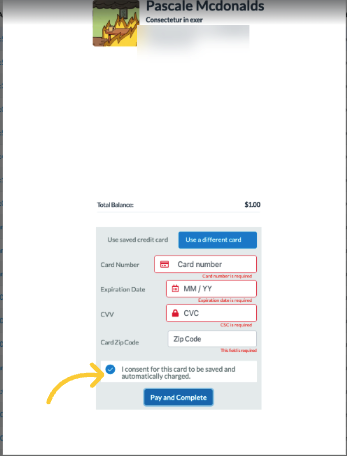
Below the payment fields, an optional checkbox allows the patient to save their card:

“I consent for this card to be saved and automatically charged.”

If selected:

  • The card is tokenized (securely encrypted)

  • Added to the patient’s list of saved cards in Curogram

After the patient clicks Pay and Complete, the system processes the payment and displays the Receipt Page.
Saved Credit Cards on File

When a patient saves a card, Curogram stores only a secure token—not the actual card number—via Xplor Pay.

Saved cards appear in the Credit Cards tab of the:

  • Patient Info page

  • Patient Details modal

What practices can do with saved cards

  • Set a card as the default

  • Charge the card manually (with patient consent already on file)

  • Delete a saved card

Deleting the last card on file will remove the ability to process manual charges until a new card is saved by the patient.

Credit Cards on File Video:

00:08: Welcome to this walkthrough of the Cure Grand payments, widget focusing on the Save card to file feature. In this short guide, you'll learn how patients pay for invoices and how pure Graham payments securely stores cards for future use. Please note that only users who have successfully integrated kilogram payments as their payment Gateway, can fully utilize this feature. If you have any questions or are interested in enabling kilogram payments, please reach out to our customer support team.

00:38: First, the practice sends a payment request, the patient receives, a secure link through text. When they tap the link kilogram verifies their identity, to ensure the payment request belongs to them.

00:51: Once the patient is verified, they'll see the list of charges. This page shows exactly what the practice is. Asking them to pay from here, the patient chooses, how they want to complete the payment.

01:03: The kilogram payments widget offers two, simple ways to pay the first is to use a saved credit card. This is the fastest way the second is to enter a new card manually.

01:15: When the patient tops you saved credit card, they'll see a drop-down listing all previously saved cards. If a default card is set, it will already be selected. The patient simply chooses a card and clicks pay and complete. No need to re-enter card details.

01:33: If the patient chooses use a different card, they'll enter their card number. Expiration date CVV and zip code all fields are required to process the payment securely.

01:45: Below the card entry Fields is a consent checkbox. When the patient checks this option, they give permission for the card to be saved for future use. This is optional. The patient can still complete the payment without saving the card.

02:00: When consent is provided kilograms, securely sends the card details to our payment, processor Spore, pay Spore. Pay generates a secure card token. And that token is saved in the patient's kilogram profile, kilogram never stores raw card data.

02:16: Once a card is saved, future payments are faster and easier patients. Simply select the card token and click pay and complete.

02:25: Explorer pay processes the request instantly. Using the saved token.

02:30: After the payment is processed, the widget automatically shows the receipt page. The patient sees confirmation that the payment was successful.

02:39: So, where can you as a practice manage and view these saved cards?

02:45: For practices saved cards appear. Inside the patient details under the new credit cards tab. This tab shows all card. The patient has chosen to save, including any default card practices. Cannot see the full card number only, the last four digits from here. You can perform payment actions such as manually charging a card and deleting the saved card, a comprehensive tutorial on manually charging and deleting saved. Cards is available separately on our support page.

03:17: That's it. You've now learned how kilogram payments Save card on file works.


Manual Charges

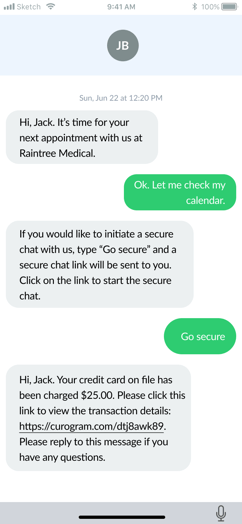
Manual Charges allow your practice to charge a patient’s saved card directly—without sending a payment link—when appropriate consent has been given.

How to Make a Manual Charge

  1. Open the patient’s file

  2. Go to the Credit Cards tab

  3. Locate the card and click Manual Charge

  4. Enter charge descriptions and amounts.
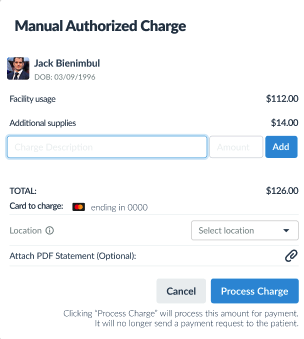
  5. Click Process Charge

After processing:

  • A record is added to the Payments dashboard.
  • The patient receives a receipt notification.
 

If you do not see this feature enabled or need further information, contact our support team at support@curogram.com.

We are always happy to help.