
Who This Is For
This guide is for:
-
AI phone system vendors who want to escalate calls into text conversations inside Curogram.
-
Healthcare practices using Curogram that work with an AI phone system and want callers to switch to SMS when needed.
If you’re a practice admin, you’ll mainly care about what happens after escalation and how to turn the feature on.
If you’re a vendor/engineer, you’ll configure the API call from your AI platform.
Prerequisites
Before you start, make sure you have:
-
An active Curogram account
-
The AI Escalation to Text feature enabled on your plan
-
Access to Practice Settings to turn on the AI Escalation toggle.
-
A text template configured in Curogram (the automatic SMS patients receive when escalated)
-
A unique AI Escalation endpoint provided by Curogram
-
Example format:
POST /ai-escalation-to-text/356270c7-aa0d-4d4e-88f5-ad84aa680d8b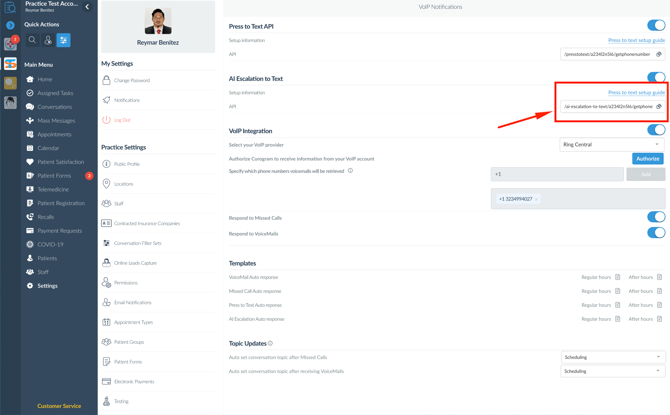
-
-
A valid API key / auth configuration (from Curogram or the practice)
-
Ability to send HTTPS POST requests from your AI platform
-
Ability to send the following JSON payload:
-
callerNumber (string, REQUIRED)
-
Caller’s phone in E.164 format (e.g.,
+15554443333)
-
-
intentTopic (string, OPTIONAL)
-
Short summary of call reason (e.g.,
"Billing question","Appointment reschedule")
-
-
How It Works (At a Glance)
-
Caller contacts the practice
-
Patient calls the practice’s phone number connected to the AI phone system.
-
-
AI Phone System handles the call
-
The AI answers, asks questions, and attempts to resolve the issue.
-
-
Trigger to escalate to text
-
The AI decides it needs human help, or
-
The caller says something like “Can you just text me?”
-
-
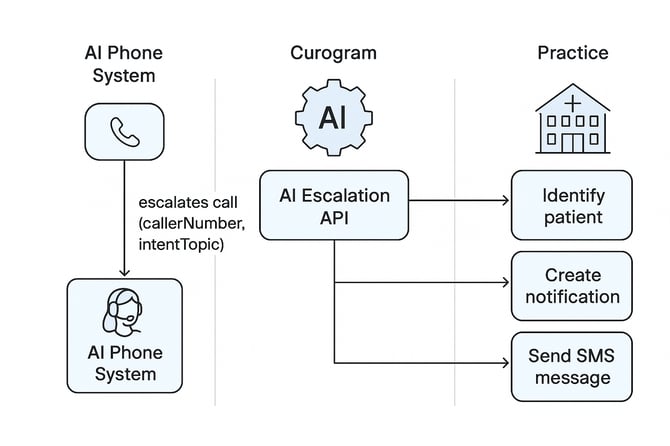
AI Phone System sends an API request to Curogram
-
POST request to the practice’s AI Escalation endpoint
-
Payload includes:
{
  "callerNumber": "+15558675309",
  "intentTopic": "Prescription refill"
}
-
-
Curogram processes the escalation
-
Matches callerNumber to a patient (if possible)
-
Creates a new notification in the Curogram Conversations dashboard
-
Sends an automatic SMS to the patient using the configured template
-
-
Practice staff takes over in text
-
Staff opens the conversation in Curogram
-
Reviews the intentTopic and patient info
-
Continues communication over secure SMS
-
STEP-BY-STEP INSTRUCTIONS
Step 1 – Get Your AI Escalation Endpoint & Credentials
-
Go to Curogram App >Settings> Account Configuration > VoIP Notifications > AI Escalation to Text
-
Copy the API Endpoint
-
A practice-specific AI Escalation endpoint
-
Each practice has its own endpoint. Do not reuse one practice’s endpoint for another.
Step 2 – Configure the API Call in Your AI Phone System
-
In your AI platform, locate the part of your call flow where escalation should occur (e.g., “Need human help” node, low-confidence fallback, or “text me” intent).
-
Add an HTTP POST action with:
-
URL: Curogram AI Escalation endpoint
-
Method:
POST -
Headers: Authentication and
Content-Type: application/json -
Body (JSON):
{
  "callerNumber": "<caller_phone_in_E164>",
  "intentTopic": "<short_description_of_reason>"
}
-
-
Ensure callerNumber is mapped from the actual caller ID.
-
Ensure intentTopic uses your AI’s detected intent or a simple summary string.
Timeout recommendation:
-
Set your HTTP timeout to 3 seconds.
-
Curogram processes the escalation asynchronously to keep your call flow responsive.
Step 3 – Define When to Send Escalations
In your AI call flow, choose specific conditions to call the API, such as:
-
AI cannot answer a question after one or more attempts
-
Caller clearly asks to switch to text
-
AI confidence score drops below a chosen threshold
-
Certain intents always require staff, e.g.:
-
Urgent clinical questions
-
Complex billing or insurance issues
-
Sensitive complaints
-
Best Practice:
-
Send only one escalation per call.
-
Do not send multiple escalations in loops or retries.
Step 4 – Configure Practice Settings in Curogram
For Practice Admins:
-
Log in to Curogram Dashboard.
-
Go to Practice Settings.
-
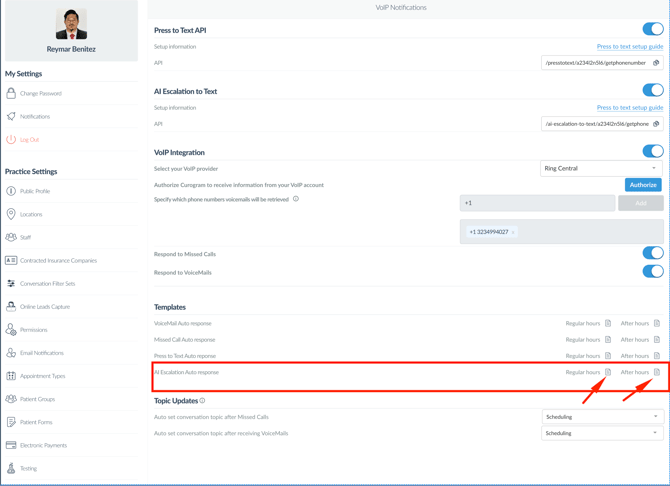
Locate the Account Configurations > VoIP Notification > AI Escalation to Text.
-
Turn the toggle ON to enable AI escalations.

-
Configure or confirm the SMS template that will be automatically sent to the patient when an escalation occurs (e.g.,
“Hi , this is . We received your call and will continue this conversation via text.”)
Step 5 – Test the Integration
-
Place a test call from a real phone number that exists as a patient in Curogram (or create a test patient).
-
Trigger one of your escalation conditions in the AI call.
-
Confirm the following:
-
A new conversation appears in the Curogram Conversations Dashboard
-
The automatic SMS is sent to the test number
-
The intentTopic or call reason appears as context (depending on your setup)
-
-
If anything fails:
-
Check logs in your AI platform (HTTP status code, error message)
-
Verify endpoint URL, headers, and callerNumber format
-
Confirm the AI Escalation toggle is still ON in Curogram
-
Step 6 – Go Live
Once testing is successful:
-
Enable escalation in all relevant call flows in your AI system.
-
Inform front desk or support staff that they will now see “AI escalation” conversations in Curogram.
-
Monitor the first week:
-
Volume of escalations
-
Response times from staff
-
Common intentTopics (for future AI improvements)
-
Your callers can now start on the phone with AI and seamlessly continue via text with your team inside Curogram.
Need Help?
If you have questions about payload formats, endpoint onboarding, or best practices, please contact your Curogram Integration Support representative or email support@curogram.com.